
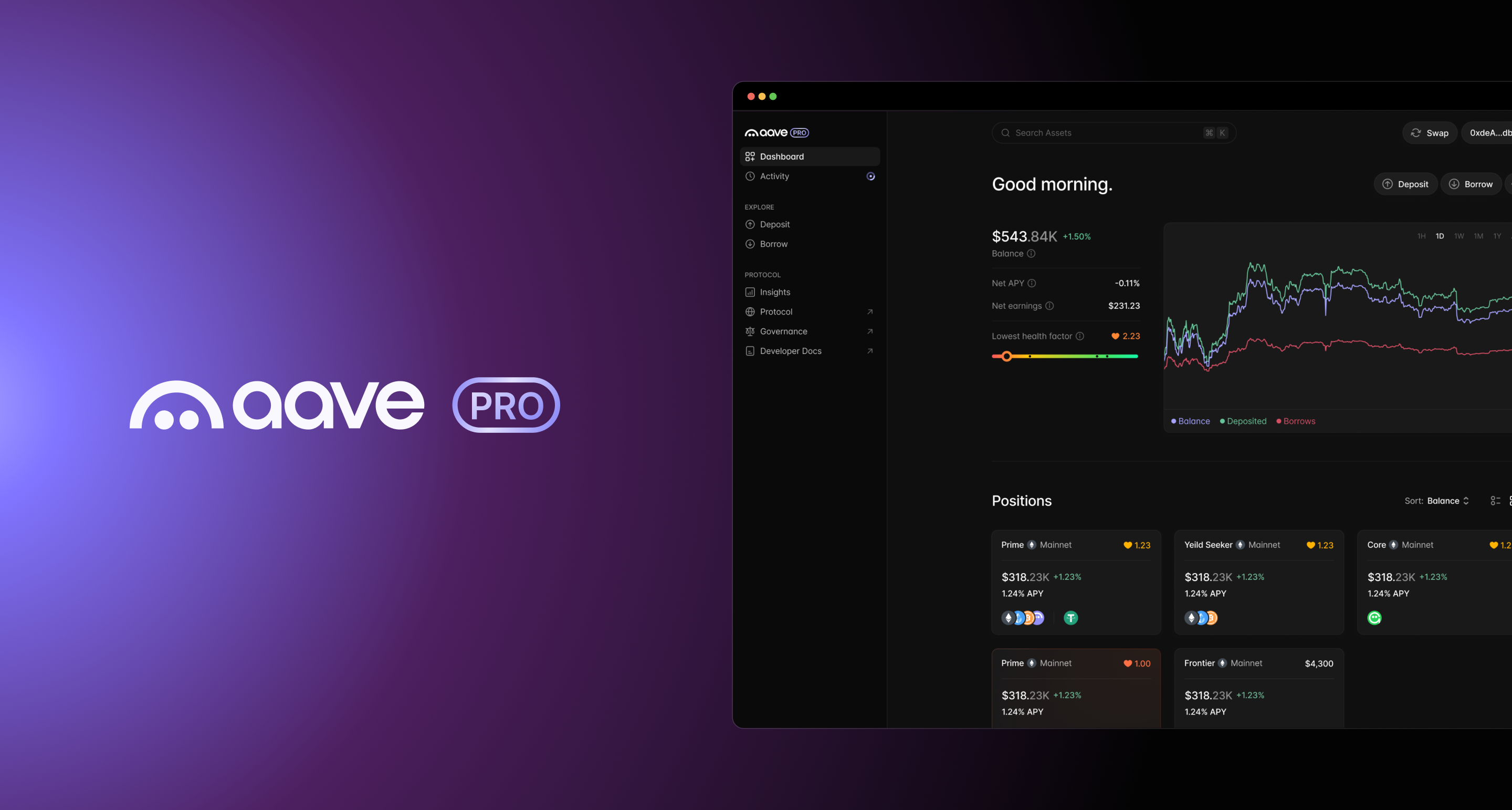
Aave Pro (live at pro.aave.com) is the dedicated interface for Aave V4, which is Aave's most significant protocol upgrade to date. This new UI is designed for DeFi power users, and will continue to introduce new tools and features that make interacting with Aave as easy as possible.
While the core lend and borrow actions will feel familiar for users, V4 introduces a fundamentally new underlying architecture that changes how markets are organized, how liquidity is orchestrated, and how risk is controlled. In short, lenders have more options for deploying assets and borrowers access more tailored parameters based on their intended use cases and individual risk profile.
This guide walks you through what's different, what to expect, and how to navigate the new Aave Pro interface.
How Aave V4 Works
Aave V4 organizes its protocol around two components called Liquidity Hubs and Spokes. A Liquidity Hub is a smart contract that holds the protocol's liquidity. When you deposit USDC, your USDC ends up in a Hub. When someone borrows USDC, the Hub releases those funds to the borrower.
A Spoke is a smart contract that connects to a Hub and enforces a specific set of borrowing rules. Each Spoke defines which assets count as collateral, what the borrowing limits are, and how interest rates are determined, etc. A single Hub can have multiple Spokes connected to it, and each Spoke can have its own risk profile.
This separation is important because the protocol can offer markets with very different rules, such as one market for blue-chip assets with conservative collateral requirements and another for higher-yield strategies with different risk tolerances.
Understanding Markets
Many assets on Aave Pro are available across multiple markets. A market on the UI is identified by a Spoke name and a Hub name. For example, "Main Core" refers to the Main Spoke connected to the Core Hub. "Bluechip Prime" refers to the Bluechip Spoke connected to the Prime Hub.
The Hub name tells you which liquidity pool the market draws from and the Spoke name tells you the specific risk rules and collateral options that apply.
For example, the Main Spoke accepts a wide range of assets like WETH, USDC, AAVE, and WBTC as collateral. Meanwhile, there are specialized Spokes that handle specific asset categories. For instance, the Ethena Ecosystem Spoke that allows for stablecoin yield strategies.
Different markets for the same asset will often show different interest rates and different collateral factors. A market with stricter collateral requirements may offer a lower borrow rate and a market with broader collateral options may carry a slightly higher rate to account for the additional risk.
Navigating the Interface
The left side of the screen contains the main navigation. The top section, labeled EXPLORE, holds the Earn and Borrow pages. The section below, labeled PROTOCOL, links to Insights, Protocol, Governance, and Developer Docs. The Dashboard and Activity links at the top of the sidebar require a connected wallet.
Pages that list assets include an All Chains selector, which narrows the view to a single network such as Ethereum, Base, Avalanche, or Arc. The Search Assets field in the top bar lets you find any asset by name or ticker. The Swap button allows you to exchange tokens. The Get Started button in the top right opens the wallet connection flow.
Earn Page

The Earn page lists every asset available for supplying to the protocol. After selecting a desired deposit asset, the following page opens:

From this page, users can select which market to deposit into. Once selected, a deposit modal will allow users to complete the deposit process.
Borrow Page

The Borrow page lists every asset, and its corresponding market, that users can borrow from the protocol. Each market has different parameters, rates, and borrow requirements for users to consider.
Selecting an asset inside a market will bring users to the asset's page to learn more about the asset. From there, selecting "borrow" opens up a borrow modal.
If a user has no collateral deposited, there will be a prompt to supply the necessary collateral to back the loan.
In the Deposit Collateral section, users enter a deposit amount and select the collateral asset from the dropdown.
In the Borrow section, users enter a borrow amount and select the asset to borrow. The Borrow Limit shows the maximum loan the entered collateral supports. Borrow APY is the market’s base rate, and Your Borrow APY is the rate for that specific position based on the collateral posted.
The Position section shows the market for the loan, named by its Spoke and Hub, such as "Main · Core," and a dropdown switches between markets. The Collateral Factor shows how much borrowing power the collateral provides in that market.
Before confirming, the Position Preview shows how the user's position will change, with each value moving from its current level to its new one. It covers the Position APY, borrowing power, net balance, and health factor, along with the estimated network fee. Users then click Deposit & Borrow and confirm the transaction in their wallet. Once the transaction is confirmed onchain, the collateral and loan appear on the Home page with the updated health factor.
Dashboard
The Dashboard shows a user’s current positions, including total deposited value, total borrowed value, and health factor. The health factor is a number that shows how safely a user’s loans are collateralized. A health factor above one means the collateral covers the debt. As the value of the collateral falls or the value of the debt rises, the health factor decreases. If it reaches one, the position becomes eligible for liquidation.
Users should check the Dashboard regularly, especially when the market is volatile.
Swap Feature
The Swap button in the top bar allows you to exchange one token for another directly within the interface. This is useful if you want to convert an asset into one that earns a higher yield or qualifies as collateral in a specific market.
Aave Pro Updates
This is a living guide that will be updated alongside Aave Pro. As a product, it will continue to evolve and new features will be added over time to make Aave V4 as easy as possible to use.
You can always check back here for the latest updates on new features and how they work. Or if you need a reminder on what's going on in the UI.
If you have any questions or feedback, please join the Discord.